
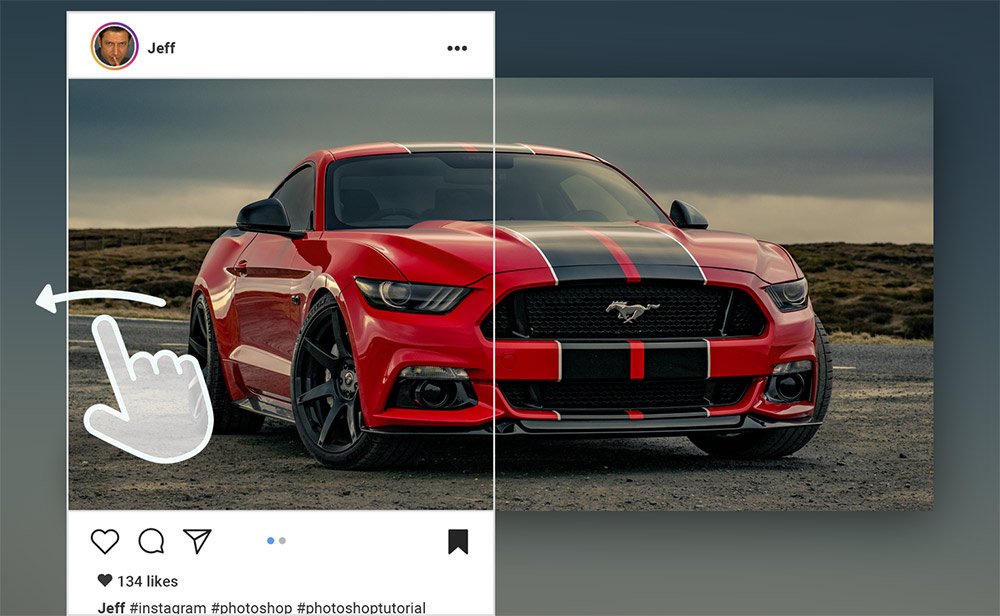
How to Create Seamless Panorama Slide Images for Instagram
In today’s Photoshop video tutorial I’m going to share some useful tips for creating visually interesting panoramic posts on Instagram that seamlessly pan back and forth to show a larger image within the regular viewport area. These kinds of posts are perfect for wide images that you just can’t seem to crop into a square ratio, or to add a little creativity to your social media profile. There are all kinds of apps available that can achieve this kind of effect directly on your mobile device, but as professional designers and photographers it’s nice to create our images manually to have full control over the outcome. I’ll show you how to use Photoshop to crop your images into the correct ratio, showing 3 different size options so you can keep in mind for when you’re processing your own images.
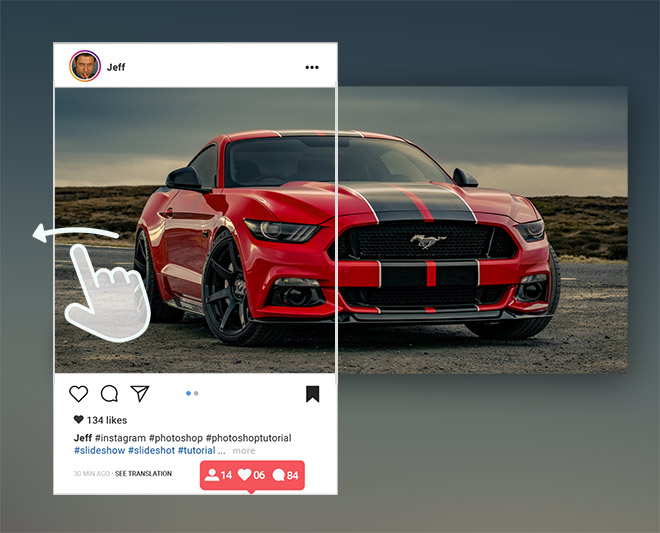
Instagram Crop Ratios
► 2x Square Images – 2:1
► 2x Portrait Images – 8:5
► 3x Square Images – 3:1
► 3x Portrait Images – 12:5

You actually made me laugh out loud! Well done. I have been a designer for years, but I still learn so much from your tutorials. Thanks for all your useful tips and tricks, Chris.
Thank you for discussing the Slice tool. Also, I’m concerned by your apparent fascination with Jeff Goldblum.
Correct me if I’m wrong as I’m away from my compooter, but aren’t math equations also supported in the ratio input fields, as well as all the usual units of measurement? So users could type in base pixel dimensions and their respective multipliers, such as 1080*3, saving steps that take them out of Photoshop.